> For the complete documentation index, see [llms.txt](https://docs.motus.org/sensorgnome/llms.txt). Markdown versions of documentation pages are available by appending `.md` to page URLs; this page is available as [Markdown](https://docs.motus.org/sensorgnome/v1/appendix/configuring-the-sensorgnome-frequency.md).
# Configuring the SensorGnome frequency
How to change the frequency setting for FunCubes to configure a SensorGnome or SensorStation to detect Lotek tags outside the Western Hemisphere
{% hint style="danger" %}
You are viewing the V1 Legacy SensorGnome user guide. This software has not been updated since 2018.
{% endhint %}
{% hint style="danger" %}
This is a critical step for any SensorGnome (or SensorStation) listening for Lotek tags outside the Western Hemisphere. This only affects Lotek compatible radios (e.g. FunCube, RTL-SDR, etc) and tags.
{% endhint %}
There are three frequencies worldwide that Motus-compatible Lotek tags broadcast on. The default configuration is set to the Western Hemisphere frequency so any SG or SensorStation deployed elsewhere needs to be configured to listen to the appropriate frequency for that region if listening for Lotek tags.
However, the frequency saved in the SG is not actually the true frequency of the tag, but rather that value minus 4 kHz. This is because the FunCubes actually resolve the tag signals better if tuned slightly below the actual frequency. For example, you'll notice that if the frequency is set for 166.380, the value here will be 166.374 and if the frequency set in the UI is 150.1, the value here will be 150.096.
{% hint style="warning" %}
The FunCube frequency needs to be set 4 kHz **below** the actual frequency
{% endhint %}
| Region | Actual frequency | FunCube setting |
| ------------------ | ---------------- | --------------- |
| Western Hemisphere | 166.380 | 166.376 |
| Europe and UK | 150.1 | 150.096 |
| Australia | 155.5 | 155.496 |
## How to set the frequency
### On a SensorGnome
The current frequency setting is displayed in the web interface. However the interactive control to change this here does not always work.
Instead, the frequency setting usually has to be modified directly in the configuration file stored on the SG called `deployment.txt`.
{% hint style="info" %}
On a RPi SG the deployment.txt file can be modified directly on the MicroSD card either before or after first use by navigating to `uboot` folder. This is generally easier than connecting to the SG if it's an option.
{% endhint %}
**1)** [Connect to the SG using your preferred method](/sensorgnome/v1/connecting.md)
**2)** [Establish an FTP connection](/sensorgnome/v1/ftp.md)
**3)** Navigate to the configuration folder (`/dev/sdcard/uboot` on Raspberry Pi or `/boot/uboot` on BeagleBone
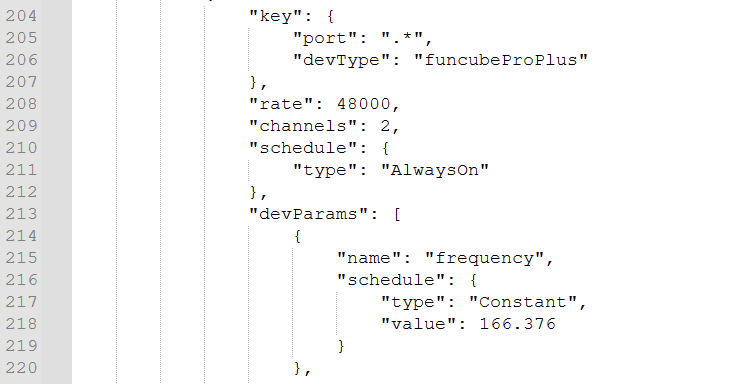
4\) Download the `deployment.txt` file to your computer and modify the frequency setting. There are four places where this is set. Three settings for the various dongles (FunCube Pro, FunCube Pro Plus, and RTL-SDR). These are set to the actual frequency minus 4 kHz, as described above. The fourth setting is at the very bottom of the file and is set to the actual frequency. These settings should be found on or around lines 52, 218, 314, and 364 of the `deployment.txt` file.
The frequency setting for the FunCube Pro Plus dongle on line 218
The frequency setting at the bottom of the file. Note this is the actual frequency.
5\) Save the file and re-upload the file back to the `uboot` folder, overwriting the existing file.
6\) Power down the SG and reboot, then connect it to your computer and open the `deployment.txt` file on the SG to ensure that the changes were persistent. You should also see the change reflected in the web interface.
### On a SensorStation
On a SensorStation, this can be modified via the web interface. Generally that is accessed at `http://sensorstation.local` while connected to the SensorStation with an Ethernet cable. At the bottom of the main page is a window containing the contents of the `deployment.txt` file. Changes can be made directly in the window. After saving, it's best to reboot your SS and reconnect to confirm the persistence of the setting change. Full instructions for accessing and understanding the SensorStation's web interface can be found on the [official guide.](https://cellular-tracking-technologies.github.io/ctt_documentation/SensorStation-User-Guide.html#the-sensorstation-interface-explained)
---
# Agent Instructions
This documentation is published with GitBook. GitBook is the documentation platform designed so that both humans and AI agents can read, navigate, and reason over technical content effectively. Learn more at gitbook.com.
## Querying This Documentation
If you need additional information that is not directly available in this page, you can query the documentation dynamically by asking a question.
Perform an HTTP GET request on the current page URL with the `ask` query parameter, and the optional `goal` query parameter:
```
GET https://docs.motus.org/sensorgnome/v1/appendix/configuring-the-sensorgnome-frequency.md?ask=&goal=
```
`ask` is the immediate question: it should be specific, self-contained, and written in natural language.
`goal` is optional and describes the broader end goal you are ultimately trying to accomplish on behalf of the user. GitBook uses it to tailor the answer towards what is most useful for that goal.
The response will contain a direct answer to the question and relevant excerpts and sources from the documentation.
Use this mechanism when the answer is not explicitly present in the current page, you need clarification or additional context, or you want to retrieve related documentation sections.